

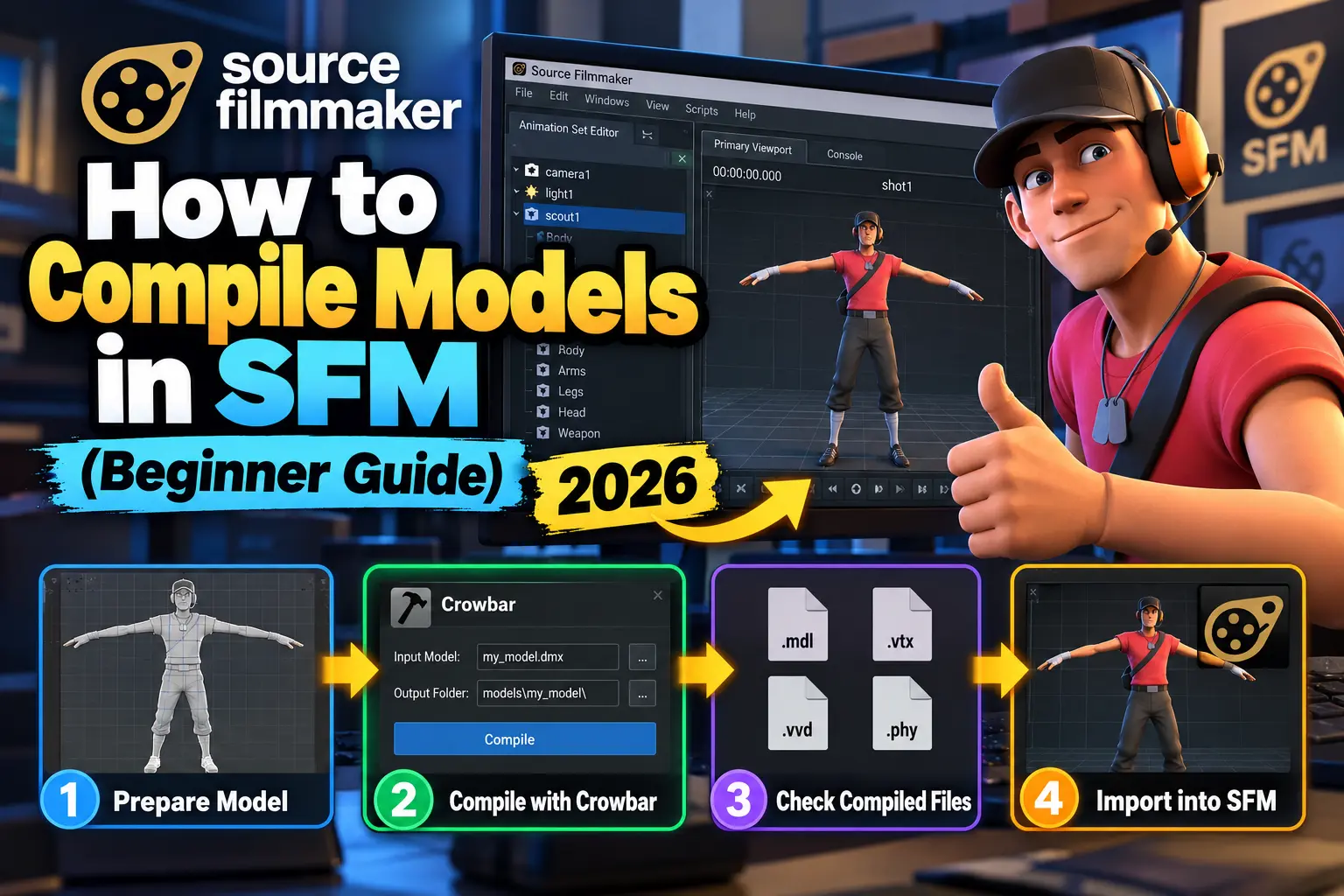
Introduction to SFM Model Compilation
If you’re stepping into animation using Source Filmmaker (SFM), one of the first technical hurdles you’ll face is compiling models. It’s not glamorous, but it’s essential. Without proper compilation, your custom characters, props, or assets simply won’t appear—or worse, they’ll appear broken.
Many beginners assume importing a 3D model is as simple as dragging and dropping a file. In SFM, it doesn’t work that way. Models must go through a structured conversion process so the engine can read them correctly.
This guide walks you through that process in a way that actually makes sense, even if you’re completely new.
What Is Model Compilation in SFM?
Model compilation is the process of converting raw 3D assets into a format that SFM can understand and render.
When you create or download a model, it usually exists in formats like FBX, OBJ, or blend files. These are not directly usable in SFM because the software is built on the Source Engine, which requires its own structure.
After compilation, your model becomes:
- .MDL (main model file)
- .VVD (vertex data)
- .VTX (mesh data)
These files work together to make your model functional inside SFM.
Required Tools and Software
Before you begin, you’ll need a few essential tools. Think of these as your toolkit for compiling models.
1. 3D Modeling Software
You need a program to create or edit models:
- Blender (free and beginner-friendly)
- Autodesk Maya (industry standard)
2. Compiler Tool
To convert files into SFM format:
- Crowbar
Crowbar is the most widely used tool because it simplifies the process significantly.
3. Text Editor
To create QC files:
- Notepad++
Understanding File Formats
SFM relies on specific formats. SMD files store mesh and animation data, QC files define compile instructions, and MDL files are the final output. Knowing how these files interact helps avoid common mistakes and keeps your workflow organized.
SMD (Studio Model Data)
- Contains mesh, bones, and animation data
- Exported from your 3D software
QC (QuakeC Script File)
- Instruction file for compilation
- Tells SFM how to build your model
MDL (Compiled Model)
- Final output used in SFM
Preparing Your Model for Compilation
A lot of beginners run into issues because they skip preparation. A clean setup saves hours of frustration.
Before compiling, ensure your model is clean and properly structured. Fix mesh errors, apply correct scaling, and organize textures. A well-prepared model reduces compile errors and makes debugging much easier later in the process.
Checklist:
- Model is properly scaled
- Mesh is clean (no duplicate vertices)
- Armature (bones) is correctly assigned
- Textures are properly named
Folder Structure Example:
project/
 ├── model.smd
 ├── idle.smd
 ├── materials/
 ├── textures/
 └── model.qc
Keeping files organized is not optional—it’s critical.
Step-by-Step Guide to Compile Models in SFM
Now let’s walk through the actual process.
Step 1: Export Model as SMD
Export your model from your 3D software as an SMD file. This file contains geometry and skeleton data required for compilation. If your model includes animations, export them separately to maintain better control and avoid conflicts during the compile process.
If you’re using Blender, you’ll need an SMD export plugin.
Step 2: Create QC File
The QC file acts as the blueprint for compilation. It tells the compiler where files are located and how to process them. Writing a clean QC file is essential for successful results.
$modelname "custom/my_model.mdl"
$body "body" "model.smd"
$cdmaterials "models/custom"
$sequence "idle" "idle.smd"What each line does:
$modelname→ Output file name$body→ Main mesh$cdmaterials→ Texture location$sequence→ Animation
Step 3: Compile Using Crowbar
Open Crowbar and load your QC file. Set the output directory and start compiling. The tool processes your files and generates the required model outputs if everything is configured correctly.
- Go to the Compile tab
- Select your QC file
- Set output directory
- Click Compile
If everything is correct, Crowbar will generate:
- MDL
- VVD
- VTX
Optional: Compile via Command Line (Advanced)
Advanced users can compile using Studiomdl for more control. This method is faster for batch work and automation.
studiomdl.exe -game "C:\SFM\game\usermod" "C:\models\my_model.qc"Make sure paths are correct, or the compile process will fail instantly.
Step 4: Move Files to SFM
After compiling, place the generated MDL, VVD, and VTX files into the correct SFM directory. Keeping files in the proper folder ensures Source Filmmaker can detect and load them without issues.
SFM/game/usermod/models/custom/Restart or refresh SFM to see your model.
Testing Your Model in SFM
Now comes the moment of truth. Open Source Filmmaker and search for your model in the browser. Load it into a scene and check textures, rigging, and animations. Testing helps confirm everything compiled correctly before using the model in a full project.
If it appears and loads correctly—you’re good.
If not, don’t worry. Errors are part of the process.
Common Errors and Fixes
1. Model Not Showing
Errors usually come from missing files, wrong paths, or QC mistakes. Checking compile logs often reveals the issue quickly. Fixing these small problems early prevents bigger issues later when working on more detailed scenes.
ERROR: Model has no vertices
ERROR: Can't find material "models/custom/texture"
These messages usually point directly to the problem.
2. Missing Textures
A model showing up as purple/black or completely blank usually indicates missing textures. This is one of the most common issues beginners face.
Cause:
- Incorrect material path in QC file
- Texture files not in the correct folder
- Missing
.VMTor.VTFfiles - File names don’t match exactly
Fix:
How to Fix It
First, check your QC file:
$cdmaterials "models/custom"Now confirm your textures exist here:
SFM/game/usermod/materials/models/custom/Make sure you have:
.vmt(material file).vtf(texture file)
Also, open the .vmt file and verify it points to the correct texture:
"VertexLitGeneric"
{
    "$basetexture" "models/custom/texture_name"
}
Even a small typo in folder names or file names can break textures.
3. QC Syntax Errors
QC errors are one of the biggest blockers during compilation. Since the QC file controls the entire process, any mistake in syntax will stop compilation immediately.
Cause:
- Missing quotation marks
- Incorrect command usage
- Wrong file paths
- Typing mistakes
Fix:
- Double-check formatting carefully
- Always use quotation marks
4. Animation Not Playing
If your model loads but doesn’t animate, the issue is usually related to how animation files are linked or exported.
Cause:
- Wrong sequence setup
- Animation SMD not linked in QC file
- Skeleton mismatch between model and animation
- Incorrect sequence name
- Animation exported incorrectly
Fix:
- Ensure the animation SMD exists and is correctly named
- Confirm both model and animation use the same skeleton
Best Practices for Beginners
Keep It Simple First
Don’t start with complex characters. Use basic models to learn.
Test Frequently
Compile after small changes. It’s easier to catch errors early.
Use Clear Naming
Avoid spaces or special characters in file names.
Organize Files Properly
Messy folders = broken compilation.
Advanced Tips to Improve Workflow
Once you’re comfortable, you can level up your workflow.
Batch Compilation
Compile multiple models at once using Crowbar settings.
Command Line Compilation
Advanced users can use:
- Studiomdl
This gives more control but requires precision.
Optimize Models
- Reduce polygon count
- Compress textures
- Clean unused bones
This improves performance in SFM.
Pro Workflow Example
A typical professional workflow looks like this:
- Model created in Blender
- Export SMD files
- Write QC script
- Compile using Crowbar
- Test inside Source Filmmaker
- Fix errors and repeat
Conclusion
Learning how to compile models in SFM might feel overwhelming at first, but once you understand the structure, it becomes a repeatable process.
At its core, SFM compilation is about:
- Converting files into the right format
- Following correct structure
- Fixing errors step by step
Mastering this skill unlocks everything else in SFM—custom characters, animations, and cinematic storytelling.
Compiling models in Source Filmmaker becomes easier with practice. It’s a technical step, but an essential one. Once you understand the structure and follow a consistent process, you’ll be able to create and use custom assets confidently in your projects.