

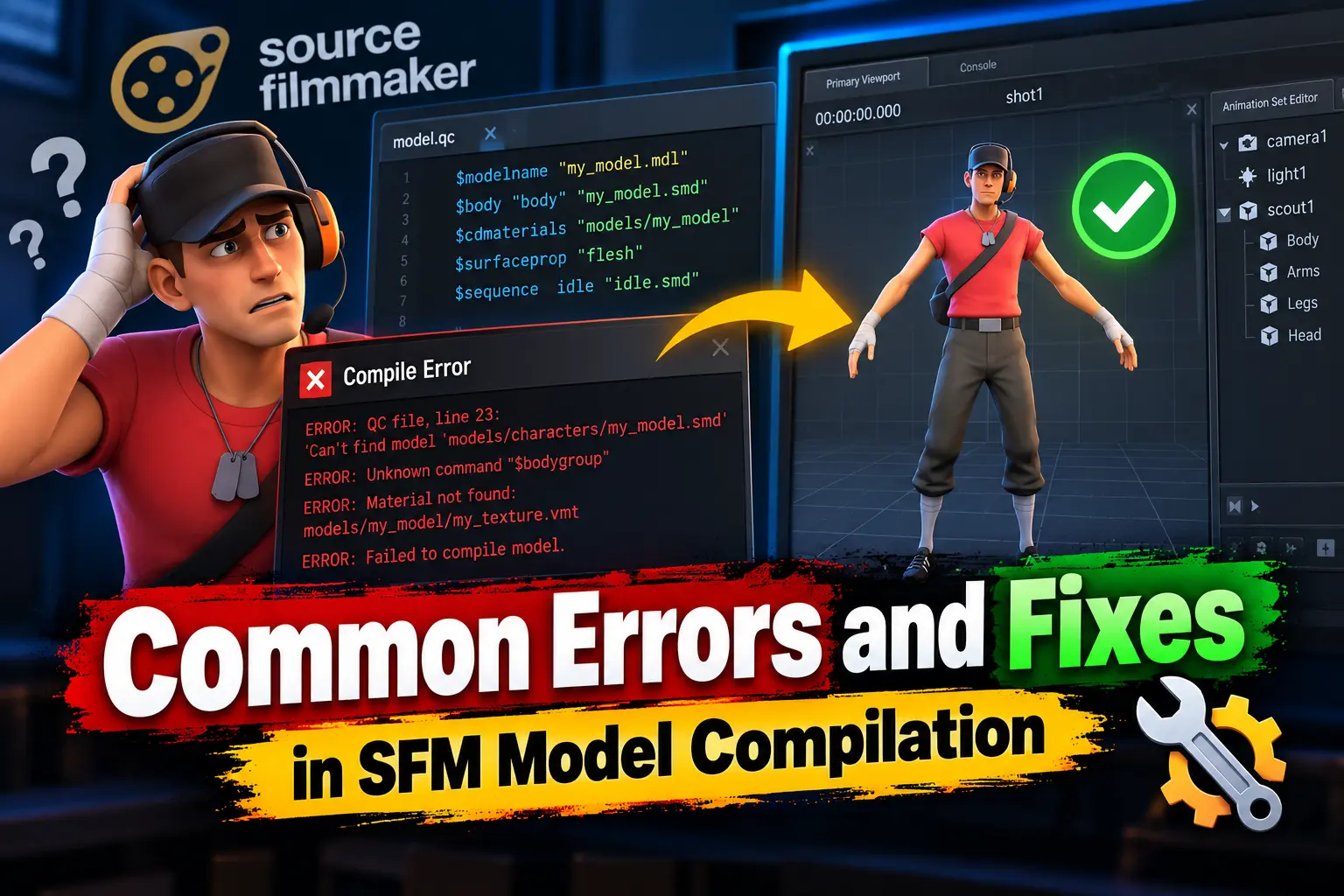
Introduction to SFM Model Compilation
Working with Source Filmmaker can be incredibly rewarding, but model compilation is where most creators hit a wall. Whether you’re importing a custom character or modifying an existing asset, even a small mistake in the pipeline can break everything.
SFM model compilation is the process of converting raw assets—meshes, textures, and animations—into formats the Source Engine can understand. This includes files like MDL, VTX, and VVD. While the process may seem straightforward, it involves multiple steps, tools, and dependencies that must align perfectly.
This guide focuses on the most common SFM compile errors and, more importantly, how to fix them efficiently.
Why Errors Happen in SFM Compile
Errors in SFM compilation usually stem from three core issues:
- Incorrect file paths or structure
- Improper export settings from 3D software
- Mistakes in QC scripting
Because SFM relies on the Source Engine, it expects very specific formats and configurations. Any deviation can cause compilation failures or broken assets.
Common Errors and Fixes in SFM Model Compilation (Explained Properly)
1. Model Not Showing
When your model doesn’t appear inside Source Filmmaker, it usually means something failed during compilation or the files aren’t placed correctly. SFM only reads compiled files from specific directories, so even a small mistake can make the model invisible.
Why This Happens
- The compiled files (.MDL, .VVD, .VTX) are missing
- Files are placed in the wrong folder
- The compile process failed silently
- QC file path is incorrect
How to Fix It
Start by checking your folder structure. Your files should be placed like this:
SFM/game/usermod/models/custom/Make sure all compiled files exist:
.mdl.vvd.vtx
Then open your compile log and look for errors. If the model didn’t compile properly, SFM simply won’t show it. Recompile using Crowbar and confirm there are no errors.
2. Missing Textures
A model showing up as purple/black or completely blank usually indicates missing textures. This is one of the most common issues beginners face.
Why This Happens
- Incorrect material path in QC file
- Texture files not in the correct folder
- Missing
.VMTor.VTFfiles - File names don’t match exactly
How to Fix It
First, check your QC file:
$cdmaterials "models/custom"Now confirm your textures exist here:
SFM/game/usermod/materials/models/custom/Make sure you have:
.vmt(material file).vtf(texture file)
Also, open the .vmt file and verify it points to the correct texture:
"VertexLitGeneric"
{
    "$basetexture" "models/custom/texture_name"
}
Even a small typo in folder names or file names can break textures.
3. QC Syntax Errors
QC errors are one of the biggest blockers during compilation. Since the QC file controls the entire process, any mistake in syntax will stop compilation immediately.
Why This Happens
- Missing quotation marks
- Incorrect command usage
- Wrong file paths
- Typing mistakes
Example of Wrong QC
$modelname custom/model.mdl
$body body model.smd
This will fail because quotes are missing.
Correct Version
$modelname "custom/model.mdl"
$body "body" "model.smd"
How to Fix It
- Always use quotation marks
- Double-check file paths
- Use a proper editor like Notepad++ for better visibility
- Compare your QC with a working example
Even a single missing character can break the entire compile process.
4. Animation Not Playing
If your model loads but doesn’t animate, the issue is usually related to how animation files are linked or exported.
Why This Happens
- Animation SMD not linked in QC file
- Skeleton mismatch between model and animation
- Incorrect sequence name
- Animation exported incorrectly
QC Animation Example
$sequence "idle" "idle.smd"If this line is missing or incorrect, the animation won’t work.
How to Fix It
- Ensure the animation SMD exists and is correctly named
- Confirm both model and animation use the same skeleton
- Re-export animation from Blender or your software
- Double-check sequence names in QC
If bones don’t match exactly, SFM will ignore the animation entirely.
Final Thoughts
SFM model compilation may feel overwhelming at first, but most errors come down to small, fixable issues. By understanding the pipeline and learning how to diagnose problems quickly, you can save hours of frustration.
The key is consistency—clean files, correct paths, and proper exports.
Master these fundamentals, and you’ll not only fix errors faster but also create higher-quality animations with confidence.